🚀 How To Download And Install War Thunder On PC: The Complete 2024 Guide
🎮 Welcome, aspiring pilot! If you're looking to join the epic battles of War Thunder, you've come to the right place. This comprehensive guide will walk you through every step of downloading, installing, and optimizing War Thunder on your Windows PC. Whether you're a seasoned gamer or new to military simulations, our guide ensures a smooth installation process.
Quick Summary
War Thunder is a free-to-play, cross-platform military vehicle simulation game developed by Gaijin Entertainment. The game features aircraft, ground vehicles, and naval craft from World War I through the Cold War. Download size: ~40GB (with HD textures). Installation time: 30-60 minutes depending on your internet connection and hardware.
📋 Table of Contents
- System Requirements
- Download Methods
- Step-by-Step Installation Guide
- Common Issues & Troubleshooting
- Performance Optimization
- FAQ
🖥️ System Requirements: Can Your PC Run War Thunder?
Before we dive into the installation, let's make sure your system meets the requirements. War Thunder is surprisingly well-optimized, but having the right specs ensures the best experience.
Minimum Requirements
- OS: Windows 7/8/10/11 (64-bit)
- CPU: Dual-Core 2.2 GHz
- RAM: 4 GB
- GPU: Intel HD Graphics 4000 / AMD Radeon 46XX / NVIDIA GeForce 600
- DirectX: Version 11
- Storage: 45 GB available space
Recommended Requirements
- OS: Windows 10/11 (64-bit)
- CPU: Intel Core i5 or AMD Ryzen 5
- RAM: 16 GB
- GPU: NVIDIA GeForce GTX 1060 or AMD Radeon RX 580
- DirectX: Version 12
- Storage: 90 GB SSD (for faster loading)
💡 Pro Tip: If you plan to play in simulator battles or want maximum graphics at 4K, consider exceeding the recommended requirements. An SSD is highly recommended for reducing loading times between matches.
⬇️ Download Methods: Official Sources Compared
There are several ways to download War Thunder. We'll explore each option so you can choose what works best for you.
Method 1: Official Website (Recommended)
The most reliable method is downloading directly from the official War Thunder Gaijin website or our trusted mirror:
- Visit the official War Thunder Download Pc Free page
- Click the "Download for Windows" button
- The War Thunder Installer (approx. 1 MB) will download
Method 2: Steam Platform
Many players prefer Steam for its social features and automatic updates:
- Open Steam client or visit store.steampowered.com
- Search for "War Thunder"
- Click "Play Game" to download through Steam
Method 3: Epic Games Store
Available since 2021, Epic Games offers occasional exclusive content:
- Open Epic Games Launcher
- Search for War Thunder
- Add to library and download
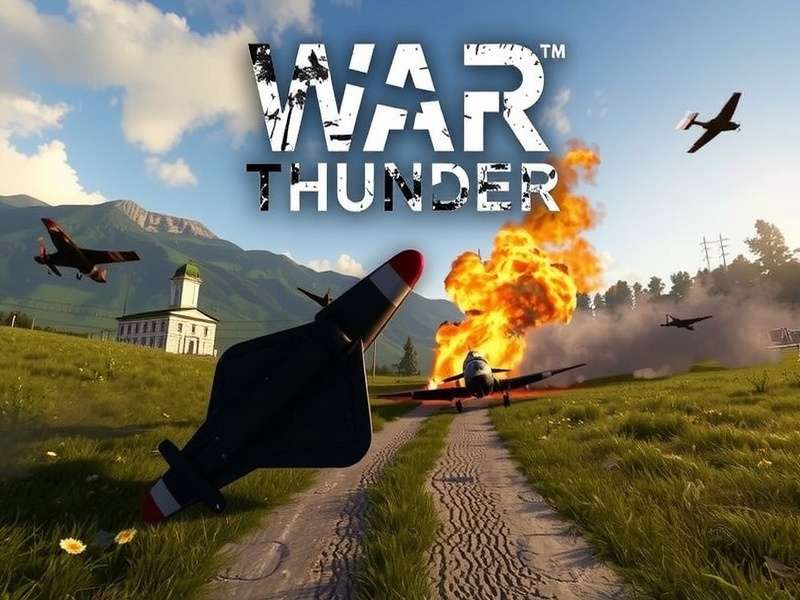
⚠️ Warning: Avoid third-party download sites that aren't officially endorsed. These may contain modified files, malware, or outdated versions. Stick to official sources like the Gaijin Store or authorized platforms.
🔧 Step-by-Step Installation Guide
Follow these detailed steps for a flawless installation. The entire process typically takes 30-60 minutes depending on your internet speed.
Download the Installer
After clicking the download button, save the WarThunderSetup.exe file to a location you can easily find, like your Desktop or Downloads folder. The file is small (about 1 MB) as it's just the installer that will download the actual game files.
💾 File Size: Initial download: ~1 MB | Full game: ~40-90 GB
Run the Installer
Double-click the downloaded file. If Windows SmartScreen appears, click "More info" then "Run anyway" (the installer is safe). Choose your installation language and accept the License Agreement.
⚙️ Admin Rights: You may need administrator privileges. Right-click the file and select "Run as administrator" if prompted.
Choose Installation Location
Select where to install the game. We recommend installing on an SSD if available for dramatically faster loading times. Ensure you have at least 45 GB of free space (90 GB if you want HD textures).
📂 Default Path: C:\Games\War Thunder\
Select Components
Choose which components to install:
- Base Game: Required (approximately 40 GB)
- HD Textures: Optional (+50 GB) - For 4K displays
- SDK: For mod developers only
For your first installation, we recommend just the base game. You can add HD textures later from the launcher.
Download Game Files
The installer will now download the actual game files. This is the longest part of the process:
- Fast broadband (100 Mbps+): 30-45 minutes
- Average connection (20-50 Mbps): 1-2 hours
- Slow connection (<10 Mbps): 4+ hours
You can pause and resume the download if needed. The launcher is robust and handles interruptions well.
Initial Setup & First Launch
Once the download completes, the launcher will verify files and create necessary registry entries. Click "Play" to launch War Thunder Game for the first time.
🎯 First-Time Setup: You'll be prompted to create an account or log in, configure graphics settings, and complete the tutorial. Don't skip the tutorial - it's actually helpful!
🎉 Congratulations! You've successfully installed War Thunder. But wait - there's more to do for optimal performance. Continue reading for essential post-installation steps.
🔍 Common Issues & Troubleshooting
Even with a smooth installation, you might encounter some issues. Here are solutions to common problems.
Issue 1: "Failed to Download Files" Error
This usually indicates a connection problem between your PC and the update servers.
- Solution: Restart the launcher and try again
- Alternative: Change download region in launcher settings
- Advanced: Temporarily disable firewall/antivirus during download
Issue 2: "Not Enough Disk Space" Error
The game needs space for installation plus temporary files during download.
- Solution: Free up at least 10% more space than the stated requirements
- Pro Tip: Use Disk Cleanup (cleanmgr.exe) to remove temporary files
Issue 3: Game Crashes on Launch
Often caused by outdated drivers or conflicting software.
- Solution 1: Update your graphics drivers to the latest version
- Solution 2: Run the game in compatibility mode (Right-click shortcut → Properties)
- Solution 3: Install latest DirectX and Visual C++ redistributables
🛠️ Advanced Troubleshooting: If problems persist, try the War Thunder Dev Server Download to test if it's an issue with the live server version. The development server sometimes has different configurations that might work better with your system.
⚡ Performance Optimization: Get the Best FPS
War Thunder can run on a wide range of systems, but these optimizations will ensure butter-smooth gameplay.
Graphics Settings for Best Performance
After installation, access Graphics Settings from the main menu or during the first launch:
- Low-End PCs: Use "ULQ" (Ultra Low Quality) preset
- Mid-Range PCs: "Medium" preset with "SSAA" disabled
- High-End PCs: "Movie" preset with "SSAA x4" for stunning visuals
Critical Settings That Impact FPS
- SSAA (Super Sampling Anti-Aliasing): Very demanding - disable if under 60 FPS
- Grass in Tank Sights: Disable for competitive advantage in ground battles
- Shadow Quality: Medium is the sweet spot for performance/visuals
- Particle Density: Reduce during large naval battles for better FPS
Windows Optimizations
Beyond in-game settings, optimize your Windows system:
- Set WarThunder.exe to "High Performance" in Graphics Settings (Windows 10/11)
- Disable fullscreen optimizations (Right-click exe → Properties → Compatibility)
- Ensure Game Mode is enabled in Windows Settings
- Close background applications, especially web browsers with multiple tabs
🎯 Competitive Advantage: Many esports players use custom graphics settings that minimize visual clutter while maintaining visibility. Consider creating a custom preset that balances performance with essential visual information.
❓ Frequently Asked Questions
Is War Thunder really free to play?
Yes, absolutely. War Thunder follows a "free-to-play, pay-for-convenience" model. You can access all vehicles and game modes without spending a penny, though premium accounts and vehicles offer faster progression. The game is monetized fairly compared to many competitors.
Can I play with friends on different platforms?
Yes! War Thunder features full cross-play between PC, PlayStation, and Xbox. You can squad up with friends regardless of their platform. Note that some special events might be platform-specific, but the core gameplay is fully cross-platform.
How often does War Thunder update?
Major updates ("Major Updates") come approximately every 3-4 months, adding new vehicles, maps, and features. Minor updates and hotfixes are released weekly or bi-weekly. The game has been continuously updated since 2012, showing Gaijin's long-term commitment.
Is there a mobile version?
Yes, but it's a separate game. Check out War Thunder Mobile for information about the mobile adaptation. The mobile version has simplified controls and different progression, but shares the same core gameplay.
Can I transfer my progress between platforms?
Progress transfer is limited. PC accounts can't be transferred to consoles, though some special promotions have allowed limited transfers. If you start on PC, you'll need to stay on PC. Consider this when choosing where to play.
📚 Related Guides You Might Find Useful
Now that you've installed War Thunder, check out these related resources:
- Thunder Game - General information about the Thunder series
- Warthunder - Community hub and player resources
- War Thunder Mobile - Mobile version guide
- War Thunder Gaijin - Developer insights and news
Player Comments
Recent Comments
Thanks for this guide! The optimization tips gave me an extra 20 FPS. The installation through Steam was seamless, but I appreciate having the direct download option too.
I had the "failed to download" error but changing the download region as suggested fixed it immediately. Great troubleshooting section!
First-time player here. The step-by-step guide made installation easy. Now trying to learn how not to sink my destroyer in the first 2 minutes of battle!